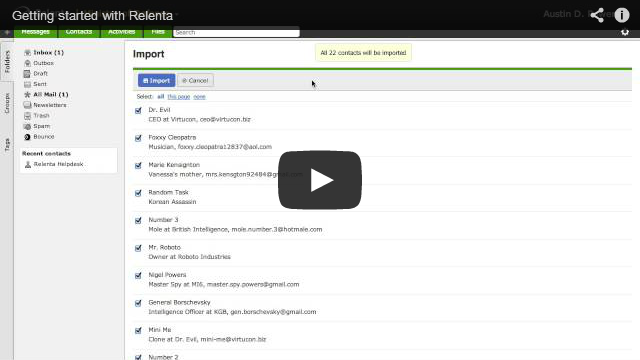
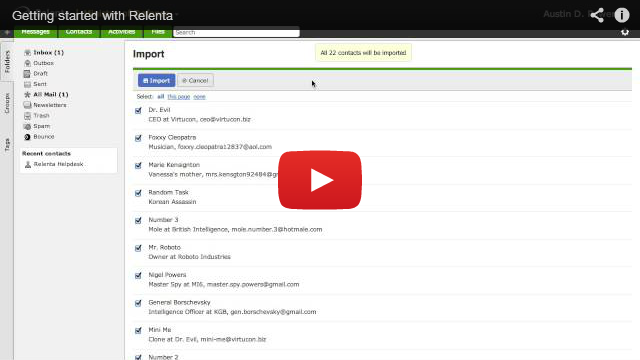
Welcome to Relenta, CRM for people who get things done. Allow us to show you how.
UNIFIED INBOX AND ACTIVITIES
With Relenta, you get all your favorite features from any email program — plus the ability to receive messages from social networks such as LinkedIn, Facebook and Twitter, and automatically create real-time chronological activity stream for each contact, which includes tasks, calendar events, and, of course, message history. You can even manage email marketing campaigns, and set up automated follow-up messages for groups of prospects.
Auto-forward your existing emails
To begin receiving email in Relenta, simply set up automatic forwarding of all email from your existing email account(s) to your you@relenta.net address. Consult your email provider to find out how to set up automatic email forwarding. You can forward as many email accounts as you’d like to you@relenta.net.
You may also decide to use Relenta for some, but not all of your email, and you can use our system concurrently with any email device, service or client.
Create email identities
You can send email from Relenta using any From: name and email. You can configure those in Settings > Email identities. Your team members can share the workload using a generic email, such as support@yourcompany.com, and/or use personal addresses, such as joe.smith@yourcompany.com.
Import your social contacts
Go to Settings > Import contacts, activate the add-ons for LinkedIn, Facebook and/or Twitter, preview and choose the contacts you want to import and voilà — you will automatically receive their direct messages and status updates.
In either case, Relenta automatically keeps tracks of what’s been said and done, what to do next, and who’s responsible, so that there’s no confusion among your team members. You’ll find that managing all of your messaging and activities on one single screen saves time, and keeps whatever information you need right at everyone’s fingertips.
POP and IMAP access
You can receive email from your existing POP or IMAP servers by adding them in Settings > Email accounts > Add incoming email account. This feature is available to our paying customers only.
Inbox features
There are two types of email messages in your Inbox: those that are associated with existing contacts, and those that aren’t (we call them ‘unassigned’). When you receive an unassigned message, you can associate it with an existing contact, or add the sender as a new contact.
You can preview, reply to, and forward an email directly from your Inbox or any other email folder. Keep in mind that if an email you replied to isn’t associated with a contact, your reply won’t be either.
Archiving a message removes it from the Inbox, but keeps it forever in the contact’s email history. You can view all messages, archived and unarchived, sent and received, in the All mail folder.
Sending email to groups of contacts
To send a mass email to a group of contacts, click on the vertical Groups tab in the left column, select the group, and click on the Mail to group button. Each recipient will see his/her own name/email address (and nobody else’s) in the To: line of your email. You can personalize the message text with contact’s name, company name, email and other fields using mail merge macros.
Outgoing mail servers (SMTP)
Each Relenta account comes with a built-in SMTP account mail.relenta.net so you can start sending messages right away.
If you’d rather use your own SMTP server, you can add it in Settings > Email accounts > Add outgoing email account.
CONTACT MANAGEMENT
Aside from keeping all contact information centralized, no longer will your staff waste hours after hours searching for client information buried in someone else’s email account. Relenta automatically links sent and received email to appropriate contacts based on the sender’s email address. Therefore, it’s important that your contact database is up to date, so Relenta can link the incoming emails appropriately.
Import contacts
You can import address books using CSV or vCard files, or import them directly from Facebook, LinkedIn, Twitter and Google Contacts.
- Importing from a file. Address books exported from other services or applications are often already formatted as CSV or vCard files. You can also create your own or edit existing CSV file, which gives you some extra options and flexibility.
- Importing from Facebook, LinkedIn, Twitter and Google Contacts. Nothing can be easier: go to Settings > Import contacts, activate the appropriate add-ons, preview the contacts and you’re done!
Create contact from email
If an email is received from an existing contact, you don’t have to do a thing! Relenta will automatically link it to that contact.
If an incoming message isn’t associated with a contact, you have two options: assign it to an existing contact, or add the sender as a new contact. Click on the appropriate link that will appear above the message preview pane.
You can also set up an email filter to create contacts from incoming email or use our email API.
Create contacts from website forms
If you’d like to capture leads from your website, simply make a few small changes to your existing forms, and they will automatically create contacts in your Relenta database. You can assign the newly created contacts to groups and email marketing sequences, like thank-you messages and automatic email follow-up autoresponders.
GETTING ORGANIZED
Relenta helps you get organized on many different levels, from segmenting and categorizing your contact database, to automatically keeping emails where they belong, to associating tasks with users and contacts. With Relenta, when it’s time to perform a task or interact with a client, everyone has access to any and all relevant information without having to search for it across multiple apps (or worse yet, other people’s heads).
Categorize and group contacts
Relenta allows you to create custom contact groups combined into categories. Each category can contain any number of contact groups. Here are some ideas to get you started:
Level of interest
- Hot
- Warm
- Cold
Contact source
- Website contact form
- Trade show
- Phone inquiry
- Referral
Preferred contact
- Phone
Status
- Potential Client
- Current Client
- Occassional Client
- Previous Client
Use the tag cloud
You can also tag any object in the system, such as a message, contact or calendar task. The tag cloud will let you instantly navigate to a list of all objects labeled with that tag.
Email filters
Email filters allow you to do any number of things with incoming email messages based on the criteria you define. For example, Relenta can…
- Automatically create new contacts from message senders who aren’t already in your database.
- Move messages from your favorite customers into an “Urgent” folder.
- Move contacts who’ve requested product literature into a “Hot Prospects” group — and set up an email campaign that automatically follows up every two weeks.
- Have any message sent to certain address trigger a “I’m out of the office this week” autoresponder.
The possibilities — and time saving opportunities — are endless. See for yourself at Settings > Filters > Add new filter. Define the criteria, choose the actions, and click Save.
Calendar
Relenta associates activities with contacts, so that when it’s time to write a proposal or get on a conference call, you’ll sound well-prepared and feel in control with a complete history of past interactions on one single screen.
To add an activity, go to Contact record, click “New activity”, enter the description, date, who’s responsible, and click Save. You can view activities for all contacts at once by clicking on the top-level green Calendar tab, or filter them by status or the team member to whom they are assigned.
AUTOMATING YOUR LIFE
Aside from keeping all information in one central place, Relenta saves you time by automating routine tasks, such as writing emails, capturing leads from your website or incoming email, and sending email follow-ups to groups of contacts.
Canned responses
Canned responses are standard, pre-written text that you can add to an email you’re composing. They can contain mail-merge macros, such as contact’s name, email address, and so on. If you find yourself answering the same questions over and over again, set them up as reusable templates. It’s a lot faster than typing from scratch, or copy and pasting from previous emails.
Go to Settings > Canned responses > Add new canned response, enter subject and body, and click Save. When composing an email, click on the Canned responses link to choose the appropriate template.
Create activity from email
You can create a task or follow-up event from any received or sent message, and assign it to your colleague. No more endless email forwarding and re-forwarding, and then remembering to make sure the appropriate action was taken. With Relenta, the status of every event and customer interaction is instantly reflected in his or her activity stream.
Email campaigns and autoresponders
Also referred to as sequential email follow-ups, email campaigns allow you to send a series of personalized email templates to assigned contacts. Email campaigns can be associated with any contact group.
The email campaign templates are scheduled to be sent in specified intervals of time, for example:
- Template 1 – sent right after the contact is assigned to group (delay 0)
- Template 2 – sent 7 days after template 1 (delay 7)
- Template 3 – sent 14 days after template 2 (delay 14)
- Template 4 – sent 30 days after template 3 (delay 30)
A delay is expressed in the number of days elapsed since the previous template.
When a new contact is added to a group that has email campaign templates associated with it, he or she will start receiving scheduled emails, starting with the first template.
Mail-merge and personalization
You can use mail-merge macros to personalize email campaign messages, mass emails to groups, and canned responses. For example, [FIRST_NAME] [LAST_NAME] will be replaced with the person’s first and last name. These macros can be used in the body of the message as well as subject line.